SimpleTelly

Android App Help

Get Started

Register the IP

Contact Support

Changing Region

Setting DNS

Problems logging in


Getting Started with the App

If you are reading this, then you have probably installed and launched our application on your Android device.

——————–

Login Screen

——————–
simpletelly android login

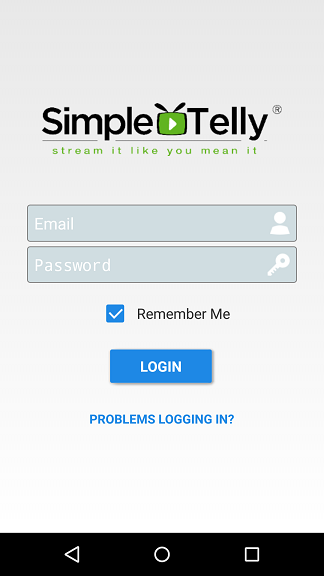
To use the app, you will first need to login with your Simpletelly registered email address and password.
Select ‘Remember Me‘ if you wish to save your credentials to login automatically in the future.
Tap Login to proceed.
Tap on the link ‘Problems logging in ‘ if you have problems logging in to the app.

——————–

Main Screen

——————–
simpletelly android

This is the main application screen, the top area shows the Simpletelly Setup Status on this device.
Account Status : shows your subscriptions status, this could be either Active (Green) or Inactive (Orange)
Your IP address : shows your current network IP address
Simpletelly DNS : shows the status of DNS on your device
The bottom area are buttons that allows you to;
Register IP
Set Region
Set DNS

——————–

List Menu

——————–
simpletelly android

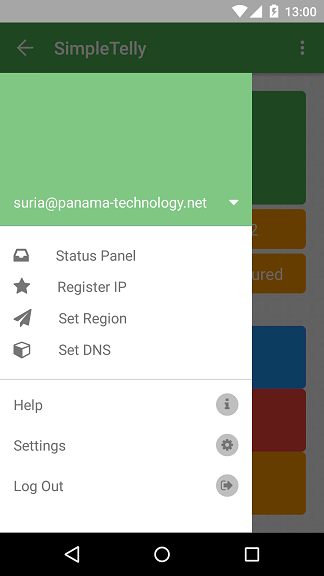
This menu shows what account you are currently logged in with, in addition to;
Status Panel : Brings you back to the main Status screen
Register IP : Brings you to the Register IP screen
Set Region : Brings you to the Set Region screen
Set DNS : Brings you to the Set DNS screen
—————————-
Help : Opens up this Help page on your browser
Settings : Brings up the Settings screen
Logout : Log you out of the app and back to the Login Screen.

——————–

Menu

——————–
simpletelly android

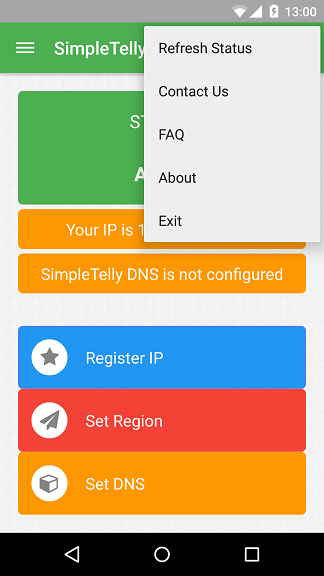
This menu brings up the options for you to;
Refresh Status : Checks your account and DNS settings again for changes
Contact Us : Allows you to email our support directly from your device.
FAQ : Opens up general service related articles on your browser.
About Us : General information about the app and our contact information.
Exit : Closes the app without logging you out.

^


How to Register your IP address using the App

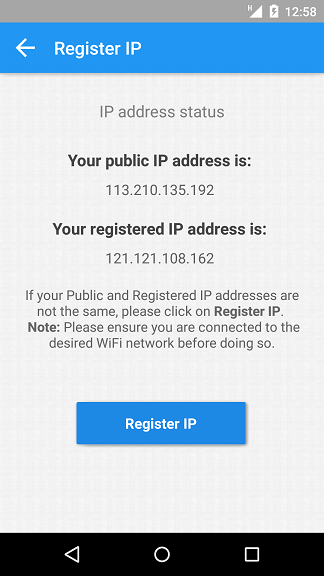
1. Click on Register IP

simpletelly android

2. It should now list your public IP address and your registered IP address.
3. Click on Register IP again if the IP addresses listed does not match.
4. Note: Please ensure you are connected to the WiFi Network that you wish to use the service prior to this, otherwise it will register your Mobile network (3G/LTE) instead, which does not allow you to modify your DNS settings.

^


Contacting Support

1. From the main menu, tap the Menu button on the app

simpletelly android

2. Select Contact Us
3. Select your preferred email client and send your query / issues that you have with the service.
4. Alternatively, you can email us directly at support@simpletelly.com with a detailed description on the issue you are having with the app or service.

^


Changing Region for Netflix

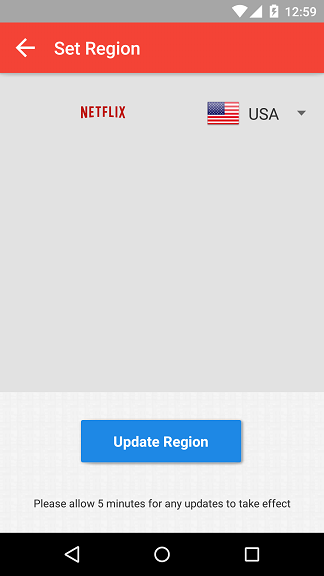
1. From the main menu, tap on Set Region.

simpletelly android

2. Tap on Netflix drop down menu and select the region you wish to access.
3. Once you are happy with the selection, click on Update Region.
4. It usually will take only a couple of minutes to update the region, but to be sure, please allow at least 5 minutes for the changes to take effect.

^


How do I enable Simpletelly DNS on my device?

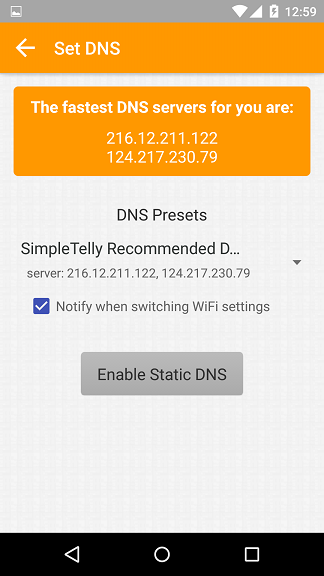
1. From the main menu, tap on Set DNS.

simpletelly android

2. By default, the app will be set to the fastest DNS servers for your location.
3. Just click on the button ‘Enable Static DNS‘ which will apply the DNS on your device.

simpletelly android

4. Once enabled, the button will now state ‘Disable DNS Enabled ‘.Only click this if you wish to disable the DNS automaton service on device.
5. Note that it will take a couple of seconds for the changes to take effect.

^


Can I use the App with my own preferred DNS?

Unfortunately this is not an option for now, as we prefer to keep it simple ;-).
However if you are having problems with the suggested DNS, you can still manually edit the WiFi DNS configuration on your device by following our setup instructions from the link below:
https://www.simpletelly.com/devices/android/

^


Problems logging in?

If you are having issues logging in to the app, please follow the troubleshooting steps below:
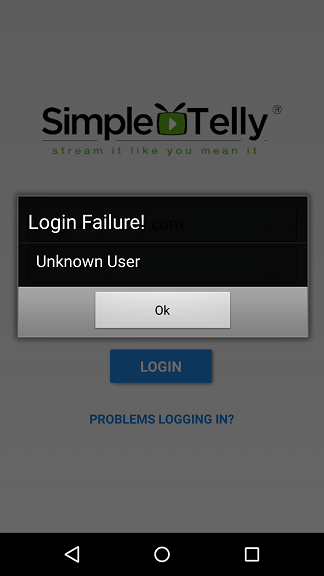
1. Error: Login Failure! Unknown User

simpletelly android

This means you are entering an unregistered or invalid email address into the app. If you have not signed up for the service yet, click on this Free Trial link to register your email address for 14 days free trial.
If you have an active subscription with us, ensure the email address that you using are correct.
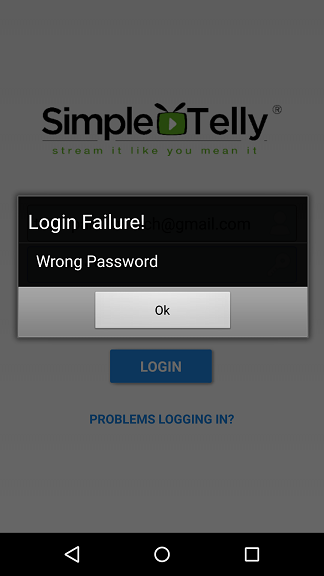
2. Error: Login Failure! Wrong Password

simpletelly android

This means you are entering an incorrect password into the app using a registered email address. If you have misplaced the password, click on this link to reset your password.
If you are still having problems logging in, kindly contact our support team at support@simpletelly.com for assistance.

^